Your website, step by step

Everything you need to put your own website at your wilssens.com address and keep it the way you want. Pick the way you like to build; each part stands on its own.

Get started

Build your site

Look after it

Rules and fixes

Get started

What you get: a website address or a hosted website

There are two kinds of website on the family domain. Your account page shows which one you have.

  1. A website address (like jan.wilssens.com) sends visitors to a website you already have somewhere else. You only choose where it points.
  2. A hosted website lives at jan.wilssens.com itself, and we keep it online. You build it any of five ways: the page maker, an AI chat, a connected AI app, an upload, or a code editor.
  3. Every time you publish, the new site is kept as a version. You can always go back to an earlier one.
  4. Until you publish for the first time, visitors to jan.wilssens.com see "a website is coming soon".

When your hosted website is approved and ready, you get an email called "jan.wilssens.com is ready for your website". From then on you can publish.

Get started

Sign in to your account

Everything for your website happens on your account page: www.wilssens.com/account.

  1. Go to www.wilssens.com/account.
  2. Have a wilssens.com mailbox? Press Sign in with Zoho and sign in with your @wilssens.com address and password. That’s all.
  3. No mailbox (only email forwarding, only a website, or you requested and pay for the name)? Under "Or get a sign-in link by email", type your @wilssens.com address or the email you requested your name with.
  4. Press Email me a link. The email arrives within a minute, with a link and a 6-digit sign-in code.
  5. Not in your inbox? In a wilssens.com mailbox (Zoho Mail), look in the Notification folder first: Zoho puts automatic emails like this one there. Then look in Spam. Elsewhere (Gmail, Outlook…), look in Spam, and in Gmail also under Updates and Promotions.
  6. Open the link in the email, then press Sign in on the page it opens. Reading your email in another browser or app than the one waiting? Type the 6-digit code under Have a sign-in code? there instead.
  7. You stay signed in for 30 days on that device.

The link works once, for 15 minutes. If it has expired, just ask for a new one.

Still waiting for your name to be approved? You can sign in the same way with the email you requested it with: your account page shows where your request stands.

The page always says a link is on its way, even if the address isn’t known to us. That’s on purpose: nobody can use it to find out who has a name here.

Get started

Choose how to build your site

Five ways, from no code at all to a full code editor. They all end the same way: a new version of your site, live at jan.wilssens.com.

  1. Page maker: type straight onto your page, add your photo, text, photos and buttons, and choose a colour and a font. No code. About ten minutes.
  2. Ask an AI and paste: ask Claude, ChatGPT, Grok, Gemini or Copilot in an ordinary chat for your site as one HTML file, then paste or upload it.
  3. Connect your AI app: connect Claude, ChatGPT or Copilot once, then say "publish this to my wilssens site" and it does it for you.
  4. Upload files: a page, a folder or a .zip, made with any tool or by a designer.
  5. Code editor or GitHub: for people who code. Download a starter project and publish with one command, or on every push to GitHub.

You can switch ways at any time. Your earlier versions stay, whichever way you made them.

GitHub is never required. Most people only need the page maker.

Build your site

Make your page with the page maker (no code)

Your page, on screen, ready to type on: click any text to change it, add blocks, choose a design and publish with one button.

  1. On www.wilssens.com/account, press Make or edit your page (or go straight to www.wilssens.com/account/site).
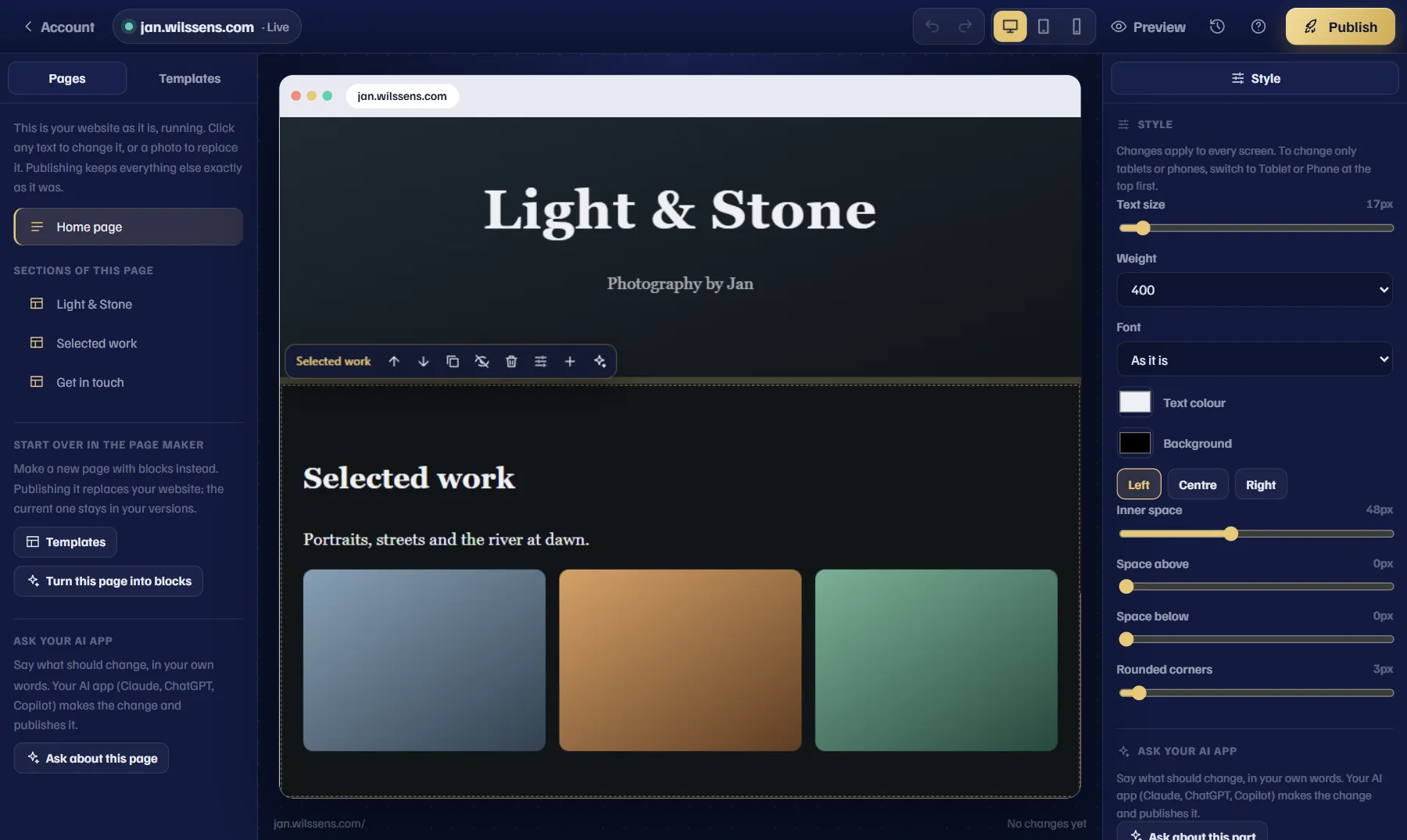
  2. The first time, choose a starting point: a template (About me, Portfolio, Our family, CV, Sport & hobbies) or a Blank page. If your website was made another way (an upload, an AI app, code), the page maker opens it as it is, running: click any text to change it, a photo to replace it, or a link to point it somewhere else. Parts its own code fills in (a countdown, a schedule) are marked and left alone. Point at a part of the page to move it, copy it, hide it, delete it, or add a block below it (text, photo, video, questions, a map…) in your website’s own style. For bigger changes, press Ask your AI app: say what you want, and it opens in Claude or ChatGPT, ready to send (connect your AI app first: the steps are right there). Publishing keeps everything else exactly as it was. Templates on the left lets you switch later.
  3. Click your name or One line about you at the top and type. Click Add your photo to choose a photo of yourself.
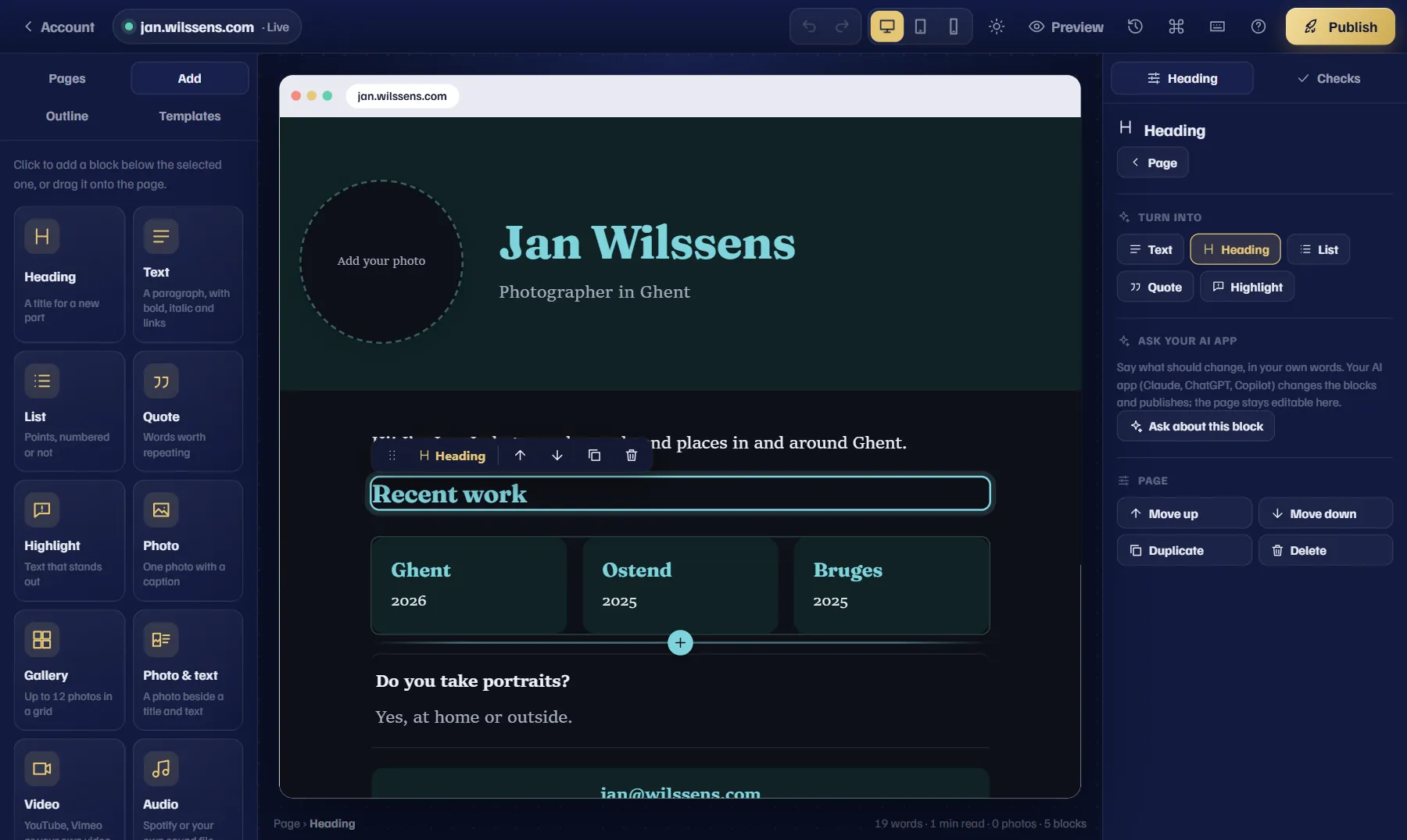
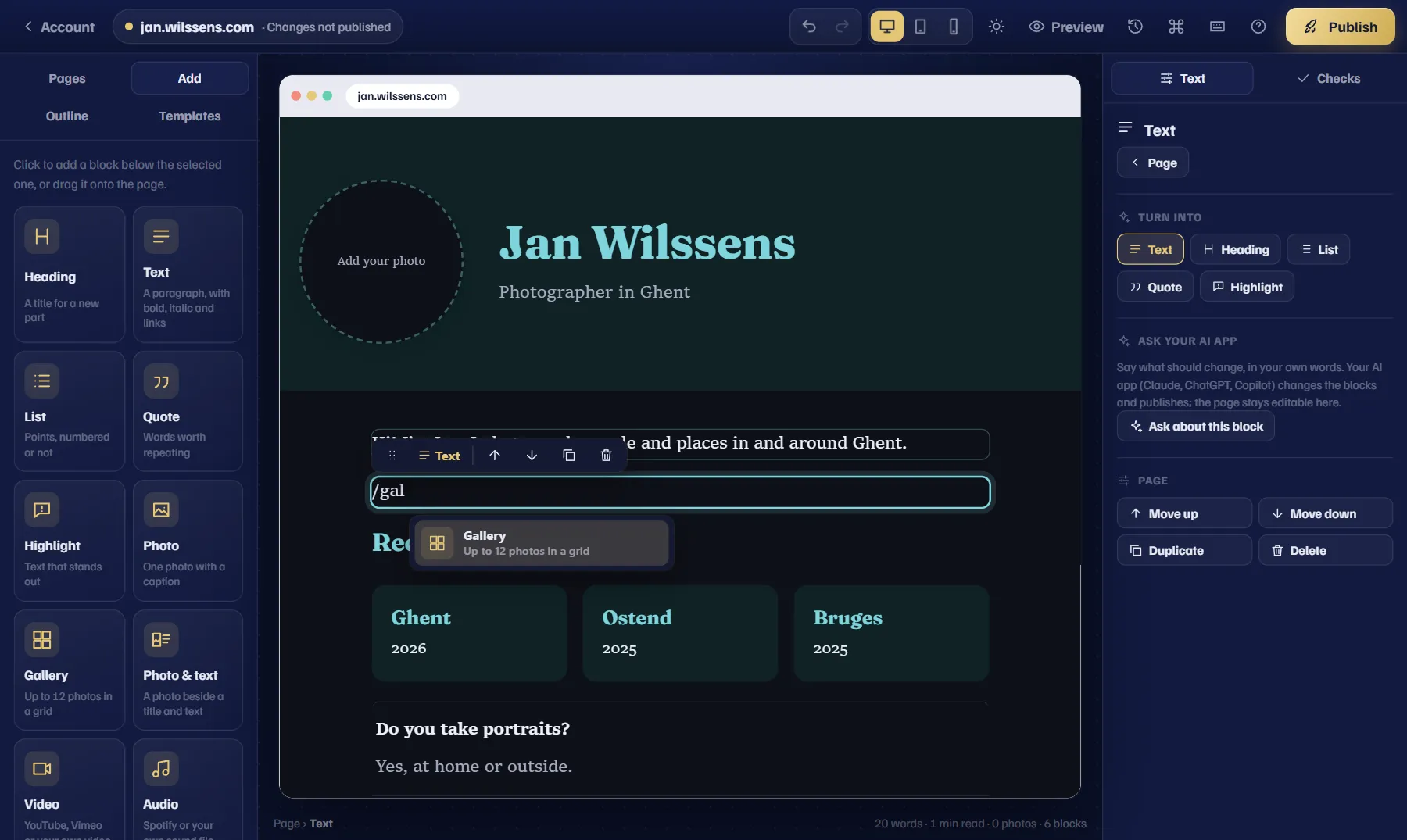
  4. Click below it and write. Press Enter for a new paragraph. In an empty line, type / to choose a block: Heading, List, Quote, Highlight, Photo, Gallery, Photo & text, Video (YouTube, Vimeo or your own), Audio (Spotify or your own), Columns, Numbers, Timeline, Questions, Buttons, Social links, Map, File (a PDF), Divider or Space.
  5. Or use the Add panel on the left: click a block to add it below the selected one, or drag it onto the page. You can also drag photos from your computer straight onto the page.
  6. Select words to make them Bold, Italic or a Link (web or email addresses only).
  7. More than one page? Under Pages on the left, type a title and press Add a page. Your site then shows a menu, and each page gets its own address, such as jan.wilssens.com/photos.
  8. Click a block to select it. The bar above it moves it up or down, duplicates or deletes it; drag the dots to move it anywhere. Outline on the left shows every block, and you can drag them there too.
  9. On the right, under Design: the Header (Centred, Side by side or Big picture), a Colour (or your own), a Font and the Language of your page. With a photo or gallery selected, describe each photo for people who can’t see it.
  10. Look at Checks on the right: it points out what’s missing, like a photo without a description or a link that isn’t an address.
  11. Use the buttons at the top to see your page on a Computer, Tablet or Phone, light or dark, and Preview it without the editing marks.
  12. Press Publish. Your page is live at jan.wilssens.com.
The page maker: blocks on the left, your page in the middle, the selected block’s settings on the right.
Type / on an empty line to see the blocks you can add.
A website made another way, edited as it is: a part’s bar above it, and its Style panel on the right.

Your changes are kept on this computer until you publish, even if you close the page. To change your page later, open the page maker again: it starts from what’s live now.

Made a mistake? Undo (Ctrl Z) at the top goes back one step at a time.

Shortcuts: start a line with # for a heading, - for a list, > for a quote. Ctrl K opens every command. Press ? to see them all.

Photos are made smaller and their location data is removed when you add them.

If your site is currently something you uploaded, publishing the page replaces it. The upload stays in your earlier versions, so you can switch back.

Build your site

Ask an AI to make it, then paste it

Any AI chat can write a website for you: Claude, ChatGPT, Grok, Gemini or Copilot. Ask for it as one HTML file, then put that file on your site.

  1. Open a new chat in the AI app you use.
  2. Copy the example below, paste it into the chat, and fill in the parts in [brackets] about yourself.
  3. Look at what it makes and ask for changes until you like it ("make the title bigger", "use green").
  4. Copy the code it gives you, or download the file if it offers one.
  5. On www.wilssens.com/account, under "Your website", press Or paste HTML, paste the code and press Publish.
  6. Downloaded a file instead? Press Choose a file or .zip, pick the .html file and press Publish.
Make me a personal website as one single HTML file, with the CSS inside it.

About me:
- Name: [your name]
- In one line: [for example: photographer in Ghent]
- About me: [a few sentences about you]
- Links: [your other sites, social media or email address]

Please: no external images or fonts, it should work well on a phone, have a light and a dark mode, no forms and no tracking or analytics. Give me the whole file in one piece so I can copy it.

Never put a password or API key in your page. Everything on it is public.

An AI may suggest a contact form. Forms can’t work here (there’s no server behind your site), and a page with a form waits for review. Ask it to leave the form out.

Photos from your phone can’t go into a pasted page. For photos, use the page maker, or put the HTML file and your photos in one folder and upload the folder.

Build your site

Connect your AI app and let it publish

Connect Claude, ChatGPT or Copilot once. After that, just say "publish this to my wilssens site". The address to connect is https://www.wilssens.com/mcp.

  1. Claude: open Settings, then Connectors, then Add custom connector. Name it wilssens, paste the address, press Add, then Connect.
  2. ChatGPT: open Settings, then Apps & Connectors, then Advanced settings, and turn on Developer mode. Then press Create and paste the address.
  3. Copilot in VS Code: open the Command Palette, choose MCP: Add Server, then HTTP, and paste the address.
  4. In every app: a wilssens.com page opens. Sign in if it asks.
  5. It says "Claude wants to publish to jan.wilssens.com" (or the name of your app). Press Allow.
  6. Back in the app, ask it to make your site and publish it to your wilssens site.

Only press Allow if you just added wilssens.com to an app yourself.

The app can see your site’s files, publish new versions (with the same checks as an upload) and switch to an earlier version. It can never read your email or change anything else.

To stop it, press Disconnect on www.wilssens.com/account under Connected apps.

Menu names in these apps change now and then. If you can’t find one, look for "connectors" in the app’s settings.

Custom connectors may need a paid plan of that AI app. Grok and other apps without connectors: ask for one HTML file instead (see "Ask an AI to make it").

Build your site

Upload files

For a site made with any tool, or by a designer. All of this is on www.wilssens.com/account, under "Your website".

  1. Press Choose a file or .zip. A single .html file becomes your home page, whatever it’s called.
  2. Or press Choose a folder to upload a whole folder.
  3. Or press Or paste HTML and paste the code of one page.
  4. Press Publish.

Your home page must be called index.html and be at the top of the folder or .zip. One folder around everything is fine.

Allowed: web pages, CSS, JavaScript, JSON, images (JPG, PNG, GIF, WebP, AVIF, SVG, ICO), fonts (WOFF, WOFF2, TTF, OTF), audio (MP3, OGG, WAV), video (MP4, WebM), PDF and text.

Limits: 10 MB per file, 25 MB per upload, 1 GB for all your versions together.

Hidden files (names starting with a dot) aren’t allowed. The extra files Macs and Windows add to a .zip are skipped automatically.

Big videos: put them on YouTube or Vimeo and link to them.

Build your site

Build it in a code editor

For VS Code with Copilot, Claude Code, Cursor and the like. On www.wilssens.com/account, under "Build it in a code editor", press Download the starter project (or Download your website as a project once your site is live: then site/ holds the files that are live now, not an example page). You get a .zip named like jan-wilssens-site with: site/ (your website; start with site/index.html), AGENTS.md, CLAUDE.md and .github/copilot-instructions.md (the rules, for AI assistants), and deploy.ps1 (Windows) and deploy.sh (Mac and Linux; needs zip and curl) to publish with one command.

  1. Unzip the starter project and open the folder in your editor.
  2. Ask your assistant to build your site in the site folder.
  3. On www.wilssens.com/account, under Deploy keys, type what the key is for (for example "laptop"), choose how long it lasts (90 days unless you pick 30, 180 or 365) and press Create a deploy key. Make a new one before it ends.
  4. Press Copy: the key is shown only once.
  5. Save it in a file called .wilssens-key in the project folder (next to deploy.ps1, not inside site).
  6. Publish. Windows, in PowerShell: ./deploy.ps1 (if Windows blocks scripts: powershell -ExecutionPolicy Bypass -File deploy.ps1). Mac or Linux, in Terminal: ./deploy.sh.
  7. It answers "Published version N: live at https://jan.wilssens.com/".

Treat the deploy key like a password. Never put it inside the site folder and never commit it (.wilssens-key is already in .gitignore).

No key needed with the wilssens command line (needs Node.js 22 or later): in the project folder, npx wilssens login (approve it in your browser), npx wilssens dev to see the site on your computer as you edit, npx wilssens site deploy --draft for a private draft with a preview link, npx wilssens site use N to put version N live. npx wilssens init makes the project folder for you. It ends after a year, or under Sign-ins and keys.

Build your site

Publish from GitHub (optional)

If your starter project is in a GitHub repository, every push to the main branch can publish your site.

  1. Put the starter project in a GitHub repository.
  2. On GitHub, open Settings, then Secrets and variables, then Actions, and press New repository secret.
  3. Name: WILSSENS_DEPLOY_KEY. Secret: your deploy key. Press Add secret.
  4. Push to the main branch: site/ is published.
  5. See how it went under Actions, in "Publish to wilssens.com". Press Run workflow to publish without a change.

GitHub is never required: the deploy script on your computer does the same.

A failed run shows the reason, with the same messages as in "Something isn’t working".

Build your site

Server code and a database

For a site that needs to keep something or do work on our side: a guest book, sign-ups, a quiz with scores, a login. It’s switched on per site, so ask [email protected] first.

  1. Ask [email protected] to turn on server code for jan.wilssens.com. Once it’s on, www.wilssens.com/account shows the card Server code and database.
  2. Put the code in a folder called server: server/index.js answers every visit to jan.wilssens.com/api/… Everything else stays your normal pages.
  3. Need tables? Put them in server/schema.sql. It runs each time that version goes live, so write CREATE TABLE IF NOT EXISTS.
  4. Publish as usual (upload, AI app or code editor). The server code starts when that version goes live. If it has a mistake, it’s refused with the reason and your site stays as it was.
  5. API keys go under Secrets on www.wilssens.com/account, never in your files. Your code reads them as env.NAME.
  6. Look at your data under Database on www.wilssens.com/account: the tables, and a box to run SQL.
Add a guest book to my site {host}. Visitors leave their name and a short message, and the newest messages show on the home page. Use server code (server/index.js) with the site’s database, check and limit what visitors send, and save it as a private draft first so I can look.

What visitors type is personal data. Keep only what you need, say on the page what you keep, and delete it when it’s no longer needed.

With an AI app connected, just describe what you want: it knows how server code works here, and can look at your database and errors for you.

Your server code runs on its own, apart from everyone else’s: it can’t reach other sites, the family email or your account.

A preview of a draft uses the server code and database that are live.

Something to do on the clock, like fetching new results every hour? Your server code can get an hourly call from us: ask your AI app to “handle the hourly call”, it knows how. Each call counts as one visit.

Look after it

Limits for server code

So that one site can’t slow things down or cost the family a lot, server code has limits. A small family site stays far below them.

  1. Each visit to /api/ may use 50 ms of computing time and call other services 50 times.
  2. About 300 visits a minute. Well above that, visitors get "try again in a minute" (Cloudflare counts this roughly, so short bursts can get more through).
  3. Per month: 1 million visits to /api/ and 60 minutes of computing time. The database may hold 100 MB, read 250 million rows and write 1 million rows a month.
  4. This month’s usage is on www.wilssens.com/account, under Server code and database. It’s updated every hour.
  5. At 90% of a limit you get an email that also says when you’d reach it at this month’s pace. You also get one when visitors were turned away (once a month for each kind).
  6. Over a monthly limit, /api/ pauses until the 1st of next month; over the database limit, until you remove data. Your pages keep working, nothing is deleted, and you get an email.

Need more room for a good reason? Reply to the email or ask [email protected]: the limits can be raised for your site.

Hitting the per-minute limit or the computing time is often a small mistake, like a page calling /api/ over and over. Ask your AI app to look at the server code: it sees the same errors.

Look after it

Earlier versions: go back in one click

Every publish is kept, whichever way you made it.

  1. On www.wilssens.com/account, look under Earlier versions.
  2. Each version shows its date, its number of files, and "live now", "waiting for review" or "not accepted".
  3. Press Use this version to put an older one back (or a newer one again). It works at once.

A connected AI app can also switch versions for you when you ask it.

Versions that are waiting for review or were not accepted can’t be used.

Look after it

Why some pages wait for review

Most pages go live at once. A few are looked at by a person first, usually within a day.

  1. A page waits for review if it has a form that sends to another website, or a sign-in form that names Zoho, Microsoft, Google, Apple, PayPal or a bank. Your own sign-in for your site, like an admin page with a password, goes live straight away.
  2. Meanwhile your site stays exactly as it was.
  3. On www.wilssens.com/account that version shows "waiting for review", then goes live or shows "not accepted".

Why: one fake sign-in page on a wilssens.com address could get the whole family domain blocked by email providers, and that would hurt everyone’s email.

Don’t need the form? Remove it and publish again: it goes live at once. Forms can’t send anything here anyway.

Look after it

Change where your website address points

Only for a website address that sends visitors to your own site somewhere else.

  1. On www.wilssens.com/account, find the card Your website address.
  2. Press Change.
  3. Type the new address (like annawilssens.com).
  4. Press Save. It works at once.

Would you rather have us host your website instead? Ask [email protected].

Look after it

Disconnect an app, revoke a key, sign out

  1. To stop an AI app: on www.wilssens.com/account, under Connected apps, press Disconnect.
  2. To stop a deploy key: under Deploy keys, press Revoke.
  3. Lost a phone or laptop, or something looks wrong? Under Profile → Sign-ins and keys you see every browser, app, command line and deploy key that can sign in as you, with when each ends. End one, or press Sign out everywhere.
  4. Both work immediately.
  5. To sign out: press Sign out at the bottom of www.wilssens.com/account.

If a key may have leaked (pasted in a chat, committed to GitHub), revoke it and create a new one.

Rules and fixes

What can be on your site

Your site is a static website: pages, styles, scripts that run in the visitor’s browser, images, fonts, audio, video and PDF.

  1. Normally there’s no server behind it: no shop, no logins, no contact forms that store or email messages, no databases. A site that needs that can ask for server code (see "Server code and a database").
  2. Everything on it is public.
  3. Files that contain API keys or private keys are refused.
  4. Keep it legal and kind: no spam, no scams, no copying other people’s work, nothing you wouldn’t show the family.

The family domain can switch off a site that breaks these rules, or that isn’t paid for.

The address belongs to the person it’s named after.

Rules and fixes

Privacy: your site is public

Anyone can visit your site, and search engines can find it.

  1. Think twice before adding a phone number, home address, birthday, school or daily routine, especially for children.
  2. Parents decide what a child’s page shows.
  3. Ask before putting other people’s photos online.

The page maker removes location data from photos automatically. For uploads, remove it yourself: most phones have an option for this when you share a photo.

Your sign-in, deploy keys and connected apps never show on your site.

Rules and fixes

Something isn’t working

The message you see, and what to do.

"Your site needs a home page called index.html at the top level": rename your main page to index.html and make sure it isn’t inside an extra folder.

"That .zip couldn’t be opened": make the .zip again. Windows: right-click the folder, Compress to ZIP file (or Send to, Compressed (zipped) folder). Mac: right-click, Compress.

"This kind of file can’t be on a website here": remove that file, or convert it to an allowed type (see "Upload files").

"This file is larger than 10 MB": make photos smaller, and put videos on YouTube or Vimeo.

"This upload is too big": 25 MB at a time and 1 GB in total. Remove old big files.

"This file contains a secret key": remove the key and publish again. With server code, keep the key under Secrets on www.wilssens.com/account instead; without it, ask [email protected].

"Your server code couldn’t go live": the message says what’s wrong, often a typing mistake on one line. Fix it and publish again; your site didn’t change. If it says it isn’t a problem with the code, it’s on our side: we’ve been told, try again later.

/api/ answers "paused": your site went over a limit. See "Limits for server code".

"Too many requests to this website right now": more than 300 visits a minute reached your server code. See "Limits for server code".

"This link isn’t a web or email address" (page maker): check the link’s address, for example annawilssens.com or [email protected].

"That link has expired or was already used" (signing in): ask for a new link.

"That deploy key is not valid": copy the key again, or create a new one on www.wilssens.com/account.

"That deploy key expired on …": keys end after the time you chose. Create a new one on www.wilssens.com/account and put it where the old one was (the WILSSENS_DEPLOY_KEY secret on GitHub, or .wilssens-key).

Your AI app says it isn’t registered or can’t connect: remove the connector from the app and add it again.

Your changes don’t show: reload the page. Images and styles can take up to 5 minutes.

Visitors see "a website is coming soon": nothing has been published yet.

Visitors see "jan.wilssens.com isn’t in use right now": the site is switched off. Contact [email protected].

Anything else: email [email protected].